> For the complete documentation index, see [llms.txt](https://energy-web-foundation.gitbook.io/katalist/llms.txt). Markdown versions of documentation pages are available by appending `.md` to page URLs; this page is available as [Markdown](https://energy-web-foundation.gitbook.io/katalist/guidelines/how-to-use-katalist/assigning-smf-3-ff.md).
# Assigning SMF-3 (FF)
Freight Forwarders assigning SMF-3 to a company with a Facilitator account should follow these steps.
**1)** In the "Holdings" section of your account, you should select the SMF-3 that you would like to Assign. When selected, an "Assign" button will appear at the bottom of the screen (highlighted in red below). Click this button.
*Note: Assigned SMF-3 remain under the Freight forwarder's ownership and are visible in the “Assigned EACs” tab. However, while SMF-3 are assigned, the Freight Forwarder cannot transfer them or retire them on behalf of off-platform customers. To regain the ability to transfer or retire these tokens, please refer to the section “Unassigning SMF-3.”*
*Note: Freight Forwarders must first retire SMF-3 on their own behalf before assigning them to Facilitators.*
**2)** A pop-up box will appear asking you to select the number of SMF-3, emission savings, or transport work you would like to Assign. Once you enter a value in any of the fields, the others will be populated with the corresponding values, as shown below. If you would like to assign all these SMF-3, select "MAX".
*Note: You will only see the option to transfer based on transport work if the Shipping Company selected to share such information when initially transferring the SMF-3 to you.*
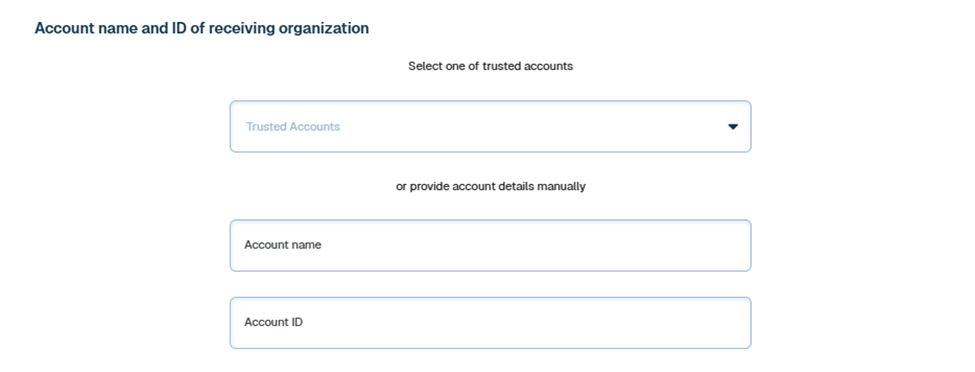
**3)** You will be asked to input the account name and ID of the receiving party. If you have already assigned SMF-3 to this company and saved them as a "trusted account" (see step 5), you can select them from the drop-down list.
**4)**If you would like to include a comment in the retirement statement, e.g. contract information relevant to the receiving party, you can select the toggle that allows this and write the relevant information.
*Note: If the Shipping Company included a comment when initially assigned the token to you, such a comment will be available only to you and will not be included when you assign it to the Facilitator account.*
**5)** Once all the information for this assignment has been filled in, you can choose to include the receiving party as a "trusted account". If you select this, in future assignments, you can select their account from the drop-down box (see step 3).
**6)** When you click submit, a new pop-up box will appear informing you of the next steps. First, the receiving party will review these SMF-3, and if they accept the assignment, the Registry Administrators will review it. Once both parties have approved, the assignment is complete.
**7)** While waiting for this approval, you can view the information about the assignment in the "Pending Units" section of your account holdings.
If you would like to cancel this assignment for any reason, click this transaction to be redirected to the screen below, where you can cancel. Once the assignment has been approved by the receiving party and the Administrator, you should see “Unassigning SMF-3 (SC & FF)” to revert this transaction and have your SMF-3 appear in the Account Holding tab again.
**8)** You will receive an email notification both when the receiving party accepts this assignment and when the Administrator accepts this assignment.
---
# Agent Instructions
This documentation is published with GitBook. GitBook is the documentation platform designed so that both humans and AI agents can read, navigate, and reason over technical content effectively. Learn more at gitbook.com.
## Querying This Documentation
If you need additional information that is not directly available in this page, you can query the documentation dynamically by asking a question.
Perform an HTTP GET request on the current page URL with the `ask` query parameter, and the optional `goal` query parameter:
```
GET https://energy-web-foundation.gitbook.io/katalist/guidelines/how-to-use-katalist/assigning-smf-3-ff.md?ask=&goal=
```
`ask` is the immediate question: it should be specific, self-contained, and written in natural language.
`goal` is optional and describes the broader end goal you are ultimately trying to accomplish on behalf of the user. GitBook uses it to tailor the answer towards what is most useful for that goal.
The response will contain a direct answer to the question and relevant excerpts and sources from the documentation.
Use this mechanism when the answer is not explicitly present in the current page, you need clarification or additional context, or you want to retrieve related documentation sections.